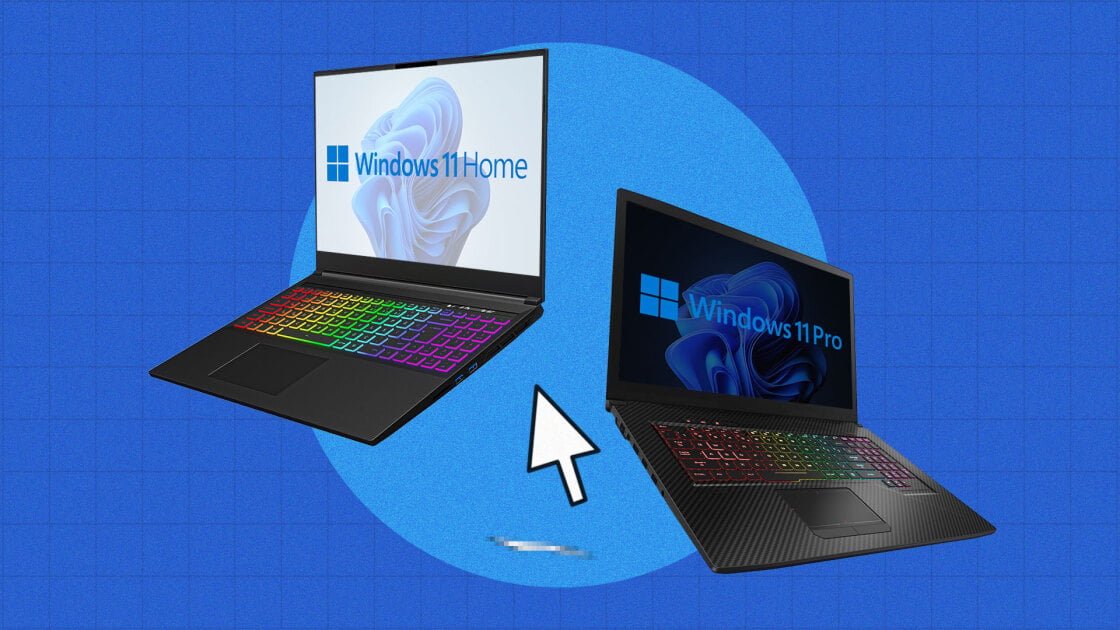
All Windows users should transition to Windows 11, as Windows 10 has reached its end of support and no longer receives security updates. But should you opt for the Home or Pro edition? Both versions offer significant upgrades over the previous desktop OS, including refined core applications, integrated Copilot AI capabilities, convenient window-snapping tools, enhanced security, and a more unified interface. The latest version also introduces gaming-focused features like Auto HDR and DirectStorage.
Whether you are purchasing a new PC with Windows 11 preinstalled or upgrading an existing compatible machine, you must decide between the Home and Pro editions. While we detail the specific differences below, the general rule is that Windows 11 Home is sufficient for most users, whereas Windows 11 Pro is tailored for business and IT professionals who require advanced security and the ability to manage multiple devices.
Upgrading an existing, compatible Windows 10 PC to Windows 11 is free, regardless of whether you choose the Home or Pro edition. Because the upgrade itself carries no cost, price is not a factor in your decision. For instructions on how to perform the update, you can refer to our guide on upgrading to Windows 11.
If you are buying a new computer, the price difference between Home and Pro is typically minimal. For instance, when configuring a Lenovo ThinkPad E14 Gen 6, opting for Pro instead of Home adds only $40 to the total. If you are building your own PC, you will need to purchase a license; a Home license is $139.99, while a Pro license is $199.99, representing a $60 gap.
If you decide to move from Home to Pro later, you can perform the upgrade through the Microsoft Store app or by entering a Pro license key in Settings > System > Activation. The standard price for a Home-to-Pro upgrade is $99.99.
Both editions of Windows 11 include all the primary features:
Copilot generative AI for research, rewriting, image generation, and more
Focus sessions to temporarily block distractions during work periods
Gaming enhancements including Auto HDR, DirectStorage, and an improved Game Mode
Live Captions that function with any audio playing on your PC
Native passkey support for improved security
A robust screenshot tool with integrated video capture
Snap Layouts for organizing and managing app windows
Updated utility applications, such as Photos and Media Player
Refined Voice Typing for hands-free text input
A Widgets panel providing news, weather, finance, and sports updates
According to Microsoft Store documentation, the following features are exclusive to Windows 11 Pro:
The ability to join a domain and connect to corporate or business networks
The ability to join Azure Active Directory for school, business, or corporate network connectivity
BitLocker, which provides enhanced data protection through advanced encryption and management
A Private Catalog for accessing company-specific apps
Hyper-V for the creation and operation of virtual machines
Regarding security, Windows 11 Home includes standard protections such as app control, device security (including core isolation for the Windows kernel and TPM support), family safety settings, firewall and network protection, and virus and threat protection.
While both editions offer device encryption, the BitLocker feature found in Pro is more comprehensive, allowing administrators to remotely encrypt a PC.
Windows 11 Pro also provides specialized security tools for IT departments managing large fleets of computers, specifically Microsoft Purview Information Protection and Microsoft Purview Data Loss Prevention. These tools allow organizations to isolate work applications from personal ones, scan devices for sensitive or unwanted content, restrict file sharing, and automatically remove potentially threatening data.
The choice between Windows 11 Home and Pro is straightforward. For the vast majority of individual users, Home is the ideal selection, as it includes all standard operating system features. You should only consider the more expensive Windows 11 Pro if you are managing multiple machines and require specific tools like BitLocker encryption, virtualization, or remote management capabilities.